
Cue Sheet Maker
A Windows app that made it easy
to create and manage cue sheets for radio programs and broadcast recordings.
About
アプリについてA Windows desktop app that makes it easy to create and manage cue sheets for radio programs and broadcast recordings. Cue sheets you created supported PDF export and JSON saving.
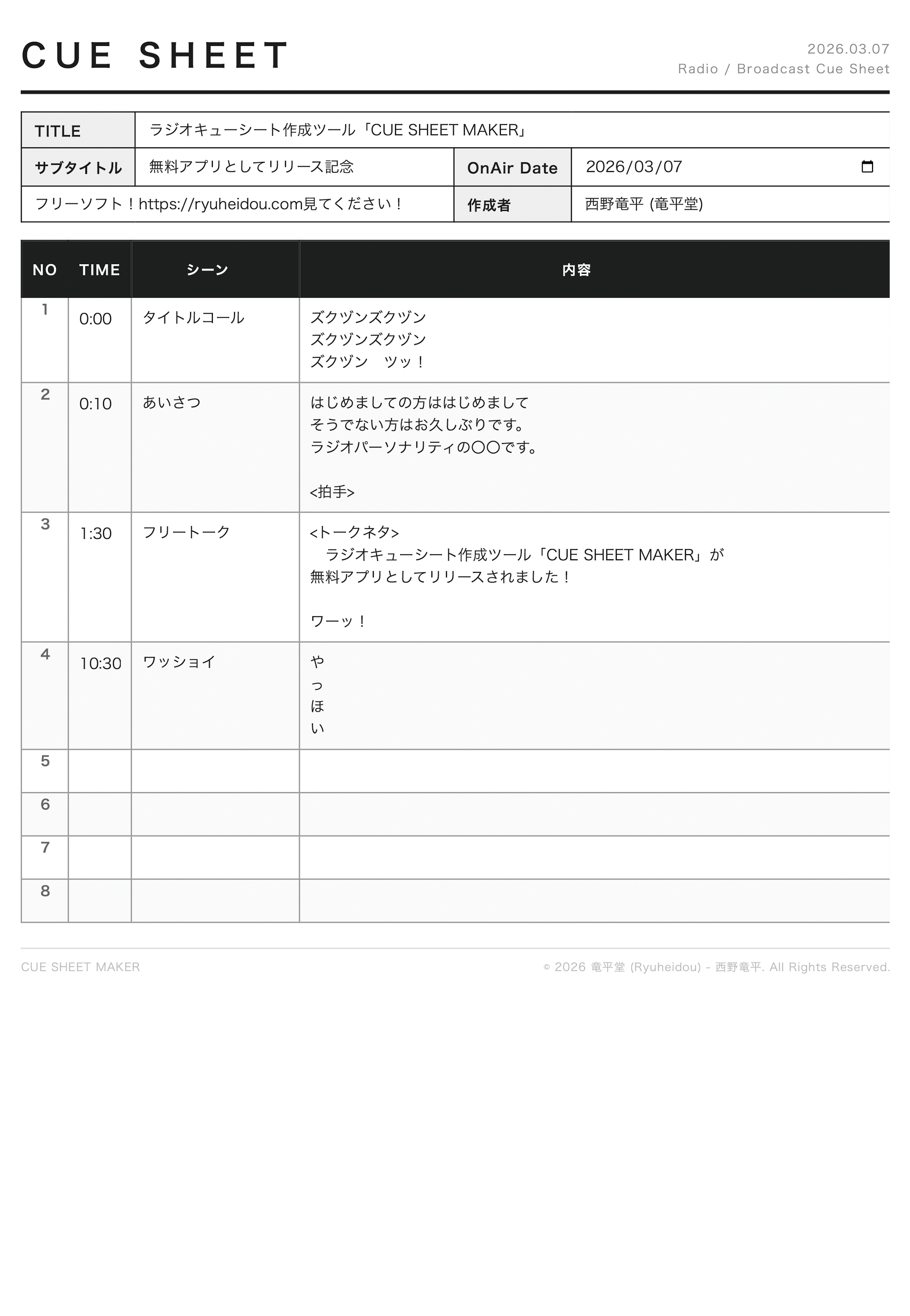
PDF Export / Print
Automatically generates an A4 portrait PDF and opens it in your system's PDF viewer. Print it as is, or save it as a PDF.
Save and Load JSON
Save your input and column layout as a JSON file. Load it the next time you launch the app to pick up editing where you left off.
Split and Resize Columns
Drag the right edge of the scene column header to split the column in two. Drag the border between columns to adjust the widths freely.
Keyboard Shortcuts
Ctrl+S to overwrite save, Ctrl+P to print, Shift+Enter to add a row, and more, so you can work quickly even in a broadcast setting.
Installer & Portable
Both an installer version and a portable version (standalone .exe) that needs no installation were distributed.
Screen
スクリーンショット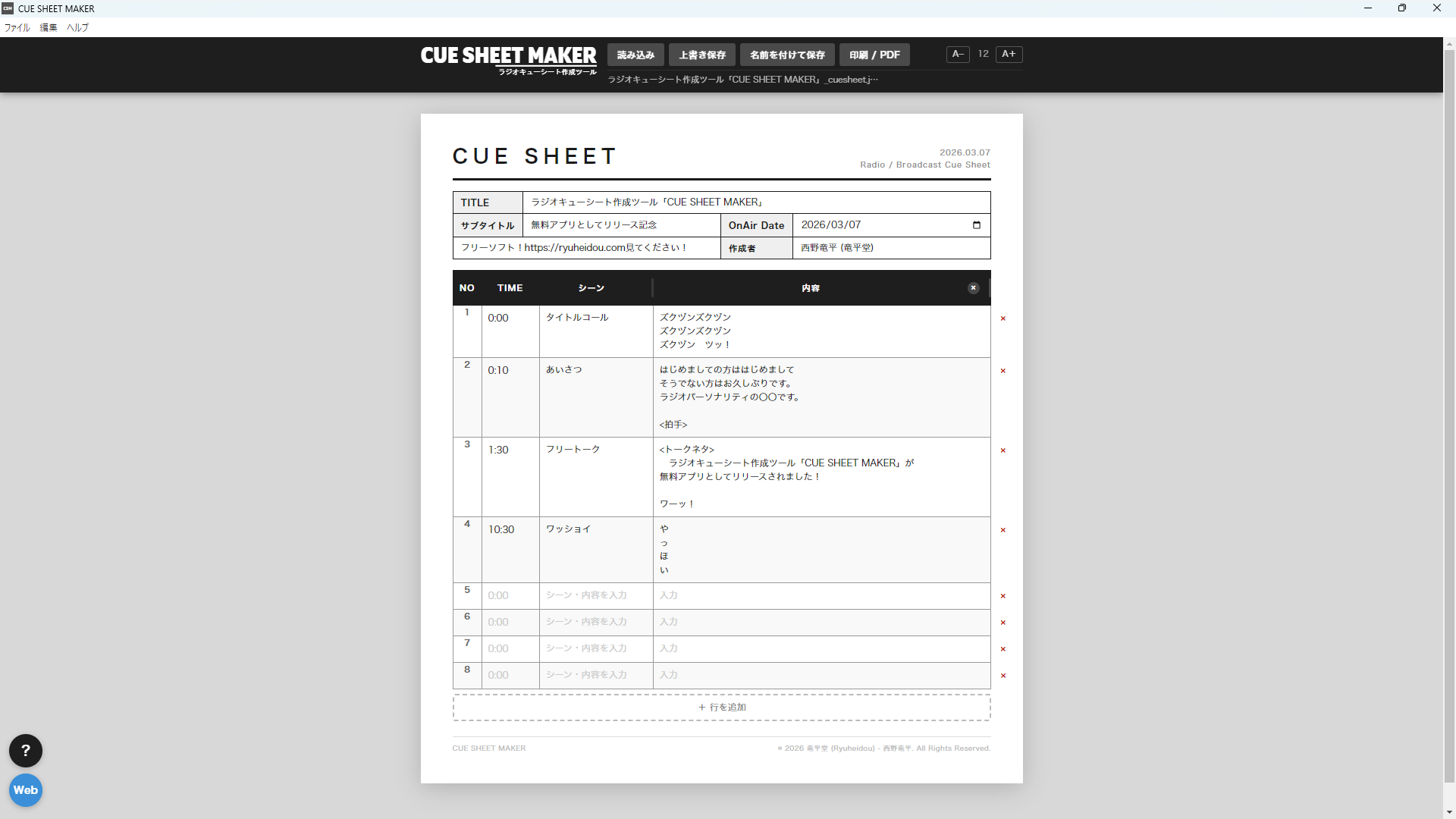
How to
基本的な使い方Enter the Basic Information
Enter the program information in TITLE, subtitle, OnAir Date, and creator. The free-input field at the bottom left can hold notes or the station name.
Enter the Cues
Enter cue times (e.g., 0:00, 1:30) in the TIME column, and freely write the scene details in the scene and content columns. Click a cell to edit it directly.
Manage Rows and Columns
Add a row with the “+ Add Row” button on the toolbar. Delete a row with the “×” at the right end of the table. Drag the right edge of the scene column header to split the column in two.
PDF Export and Printing
Click the “Print / PDF” button on the toolbar (or press Ctrl+P) to automatically generate an A4 portrait PDF. Print from the PDF viewer, or just save it as a PDF.
Save and Load
“Save (JSON)” (Ctrl+S) saves your input and column layout. “Load” (Ctrl+O) loads a saved JSON so you can resume editing.
Keys
ショートカット| Shortcuts | Action |
|---|---|
| Ctrl + O | Open file |
| Ctrl + S | Overwrite save |
| Ctrl + Shift + S | Save as |
| Ctrl + P | Print / Export PDF |
| F1 | Show how to use |
| Shift + Enter | Add a row (inside a cell in the last row) |
| Escape | Close dialogs and modals |
Tips
使いこなしSplitting Columns
Drag the right edge of the scene column header to split the column in two.
Adjusting Column Widths
After splitting, drag the border between columns to resize the widths freely.
Editing and Deleting Column Names
Click the text in a column header to edit its name. The “×” in the header of the second and later columns deletes that column.
Row Delete Buttons Don't Print
The “×” (row delete button) at the right end of the table does not appear in the PDF or printout.
Confirmation on Exit with Unsaved Changes
If you try to quit the app with unsaved changes, a confirmation dialog appears. This keeps you from accidentally losing important data.
Free-Input Field at the Bottom Left
Write whatever suits your purpose, such as the station name, notes, or contact details. It appears in the PDF as is.
Archive
配布終了Distribution Ended
Distribution of this software has ended. (May 21, 2026)
Disclaimer
This software is provided “as is.” The author accepts no responsibility for any damages arising from its use.
Privacy
プライバシーポリシーAll processing is done inside your computer. See the Privacy Policy for details.